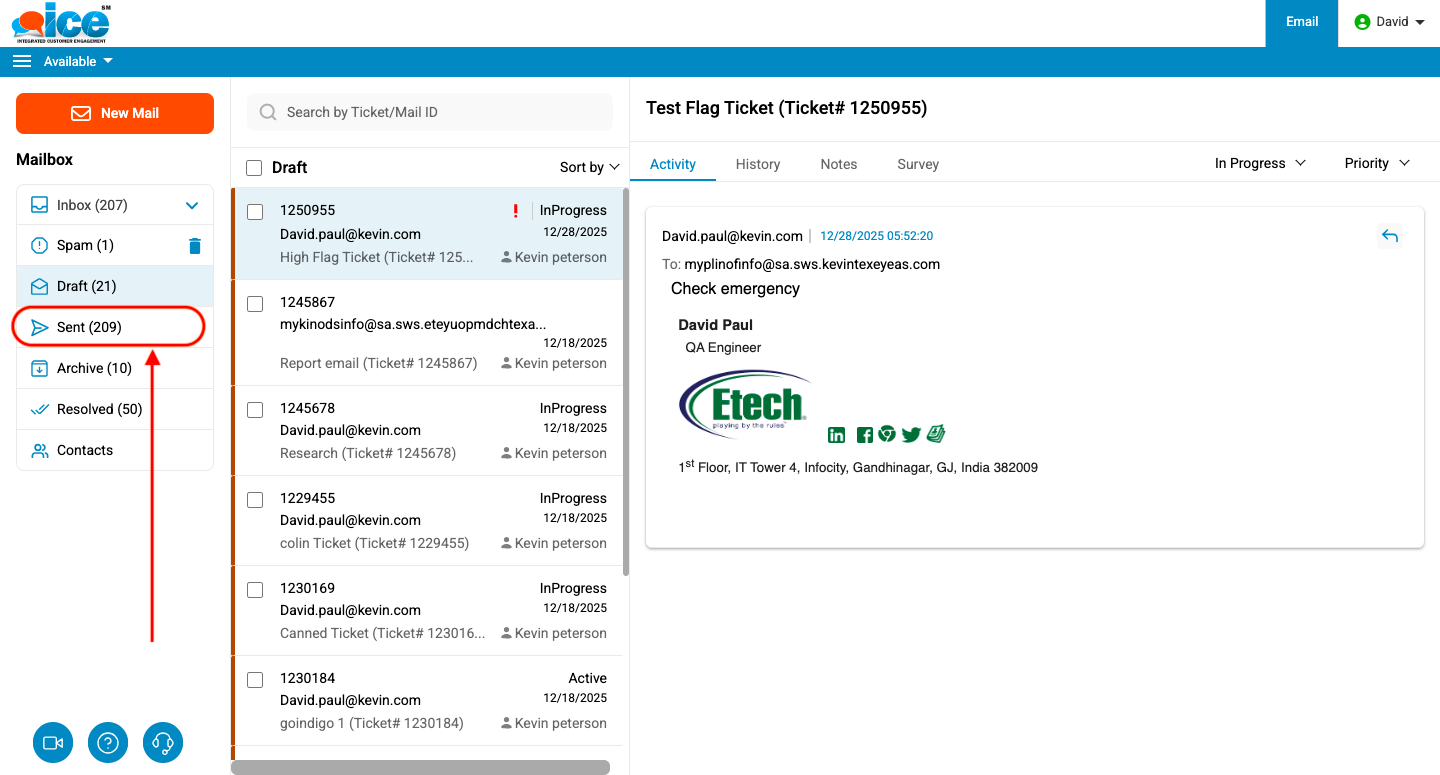
Click Sent to view all the sent tickets as shown in the below screen-
A list of all the tickets that an operator has sent till date is displayed in the Email Grid as shown in the screen below.
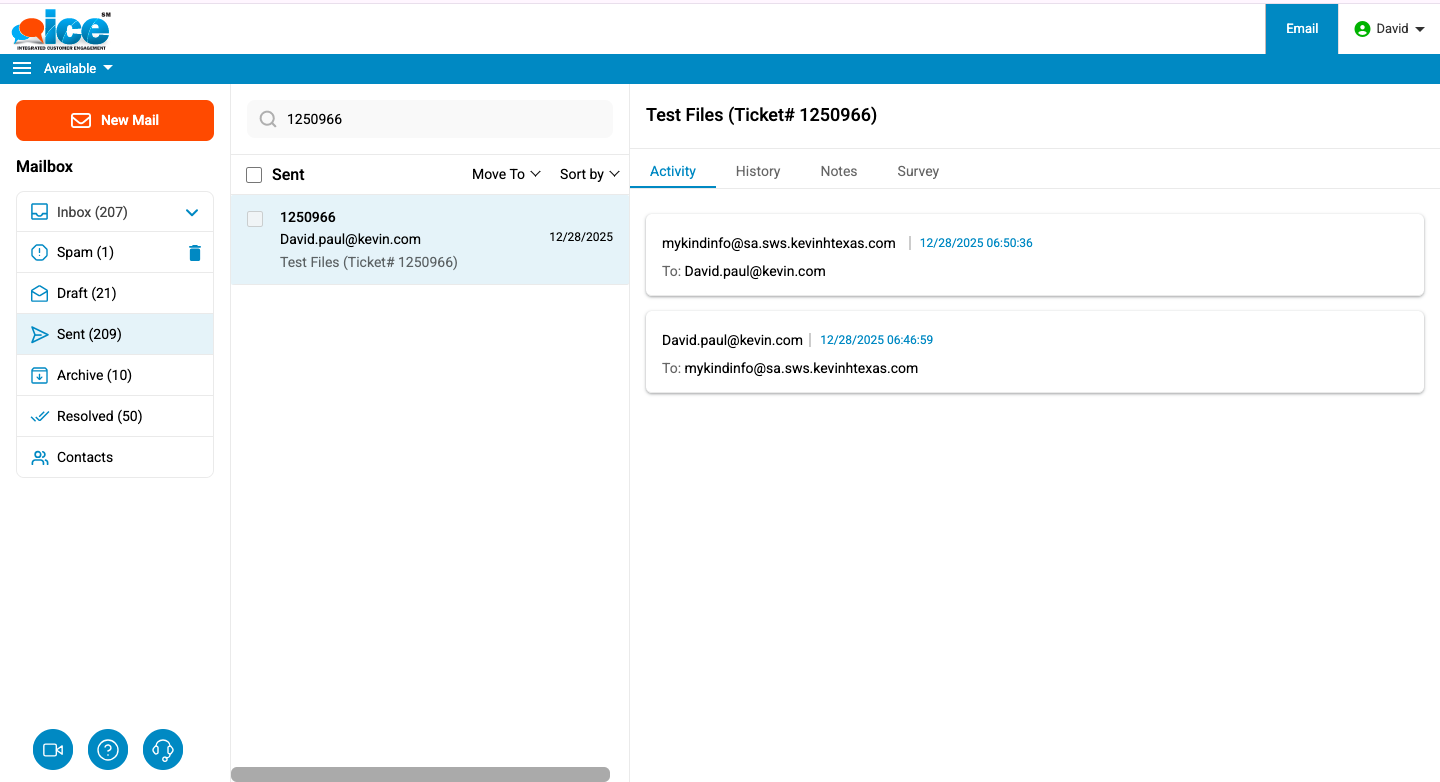
An operator can further select a particular ticket and perform the required action.
Move Sent Emails to Inbox Folder
ICE Agents can move one, multiple, or all the emails from their sent folder to their Inbox folder in the ICE Email.
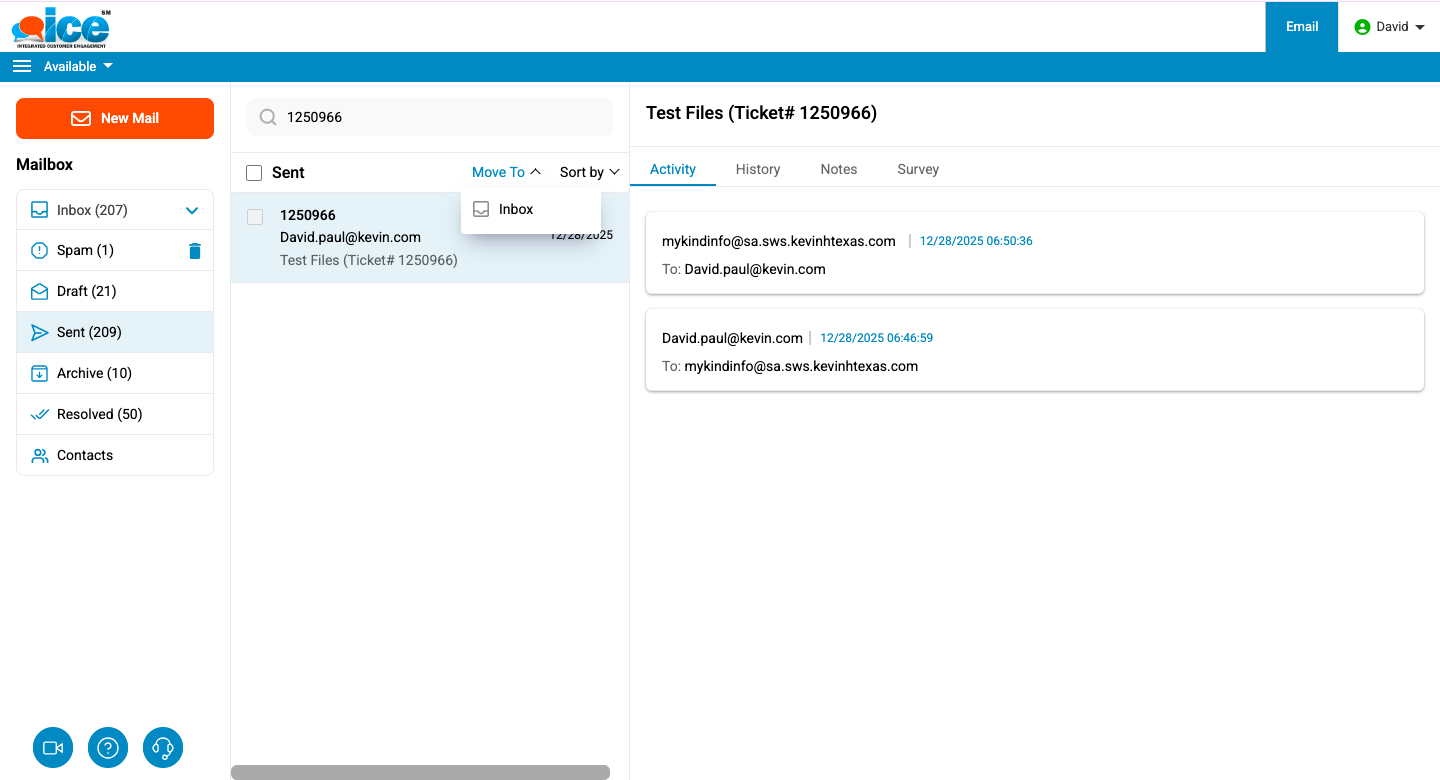
Move to Inbox button is displayed in the Move to tab as shown in the following image:
To move one or more sent emails to the Inbox:
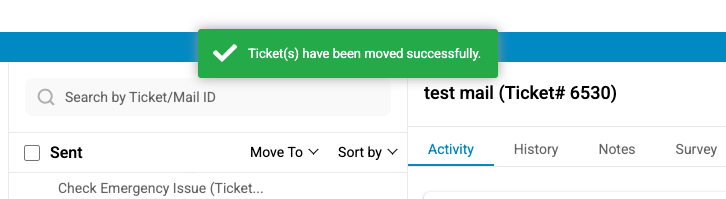
Select the checkboxes next to the required emails, then click Inbox under the Move To tab. All selected emails, along with their entire conversation, will be moved from Sent to Inbox. A confirmation message will appear once the move is successful.
Note: The agent or supervisor cannot undo the shift once done.
In the sent folder, the emails which are already moved to the inbox folder will no longer have the option to move them again, as the checkboxes will not be selectable.
Note: The checkbox will be displayed for the emails which are newly composed and which are not yet moved to the inbox folder.
In the inbox folder, the emails which were moved from the sent folders and sent to this folder will be displayed as shown below:
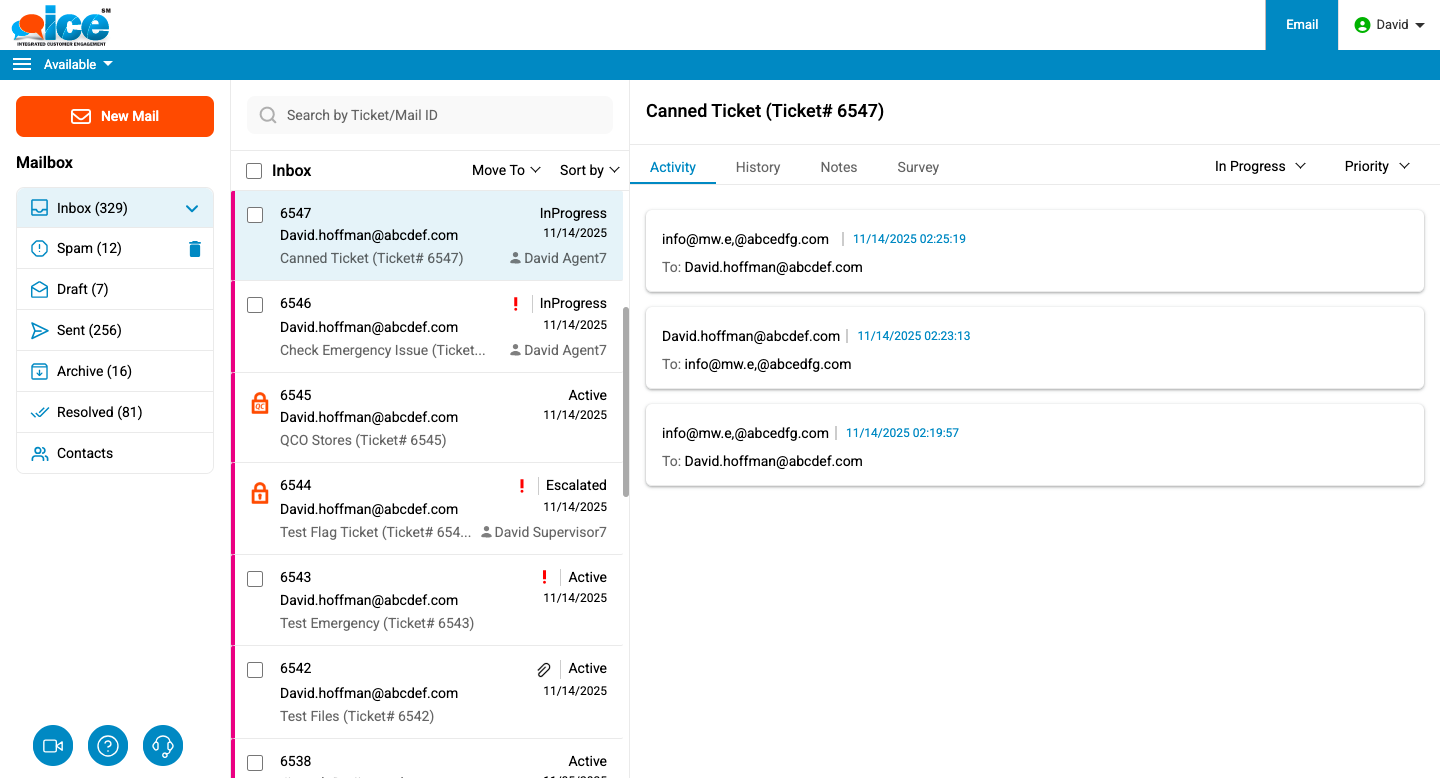
Note: If the emails sent for specific skills are once moved from the sent folder to the inbox folder, then such emails will be visible to all the agents and supervisors assigned with that specific skill.