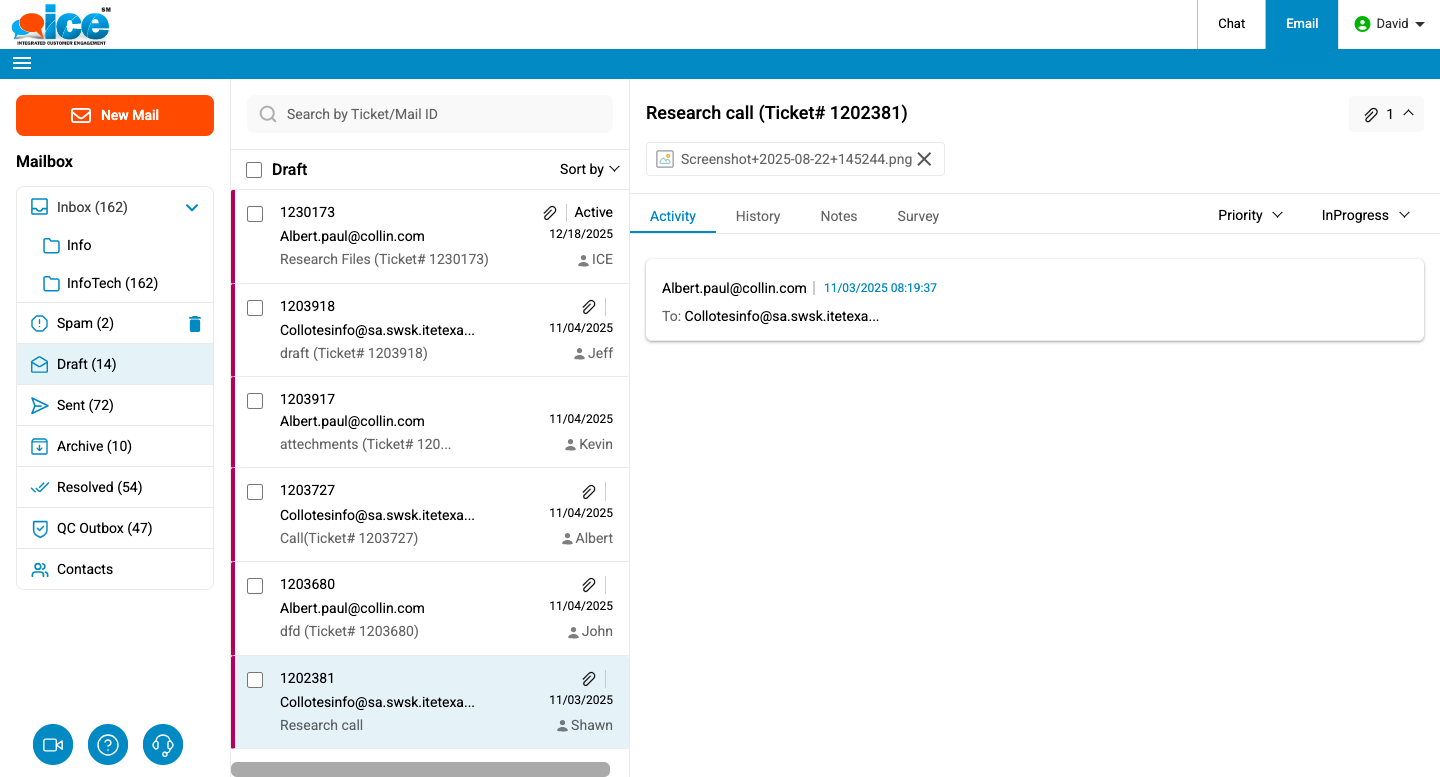
An operator can save ticket as a draft which can be later edited or sent to the customer.
Following are the steps to use this facility:
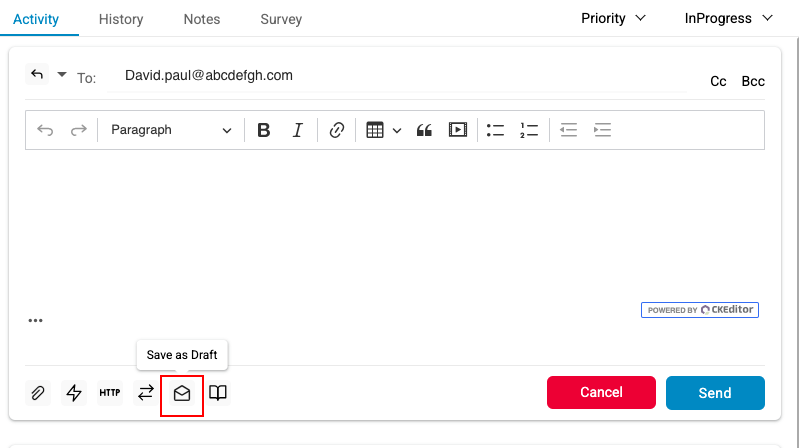
- Click
 icon at the bottom bar in image shown below, to save a ticket as a draft.
- A message box stating Email has been saved as draft successfully appears as shown below.
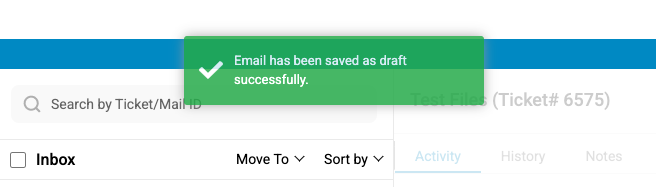
Message box
- Click Draft from the Folder List to view all the tickets that have been saved as a draft as shown highlighted in the below screen-
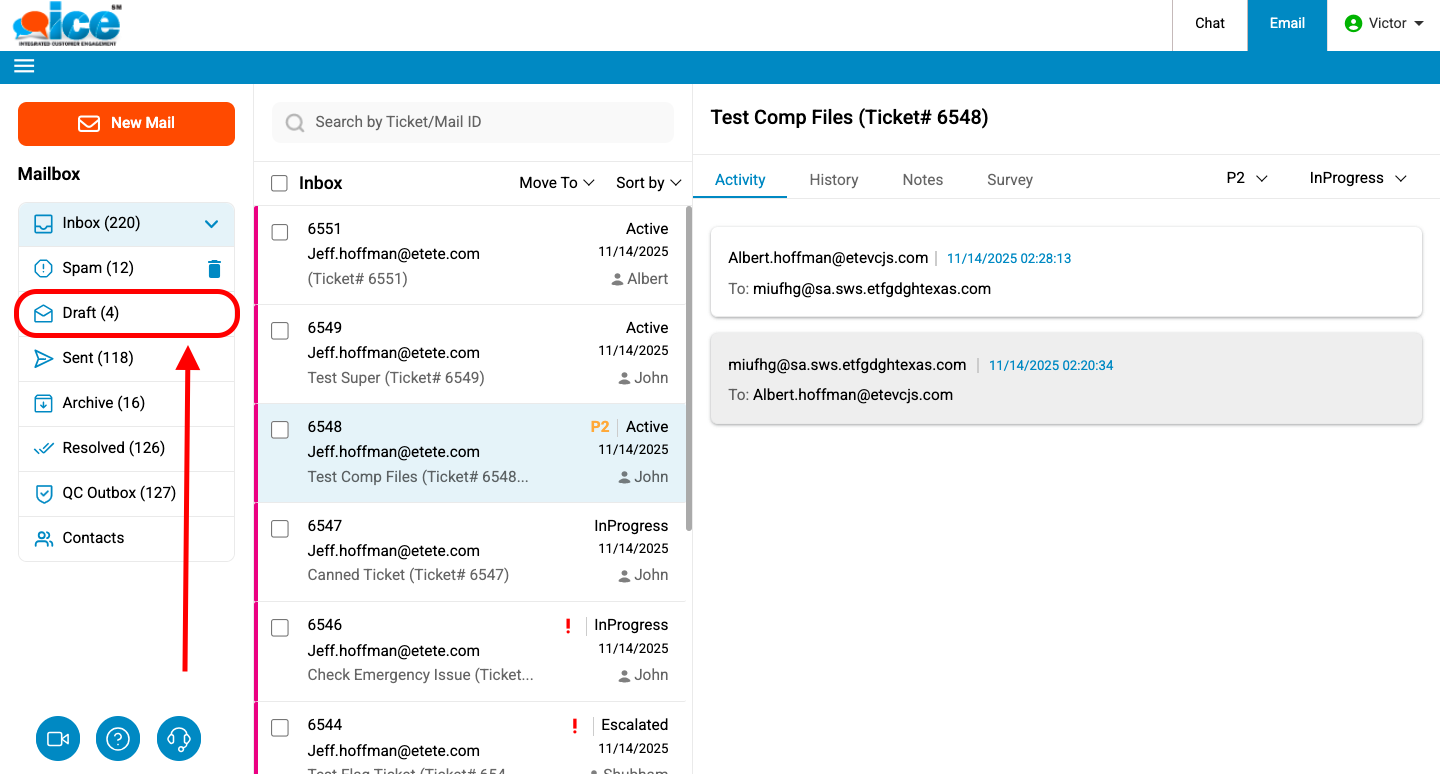
The drafts will be displayed in the Email Grid as shown below.