Click  on the top right corner console to view Mailbox – inbox.
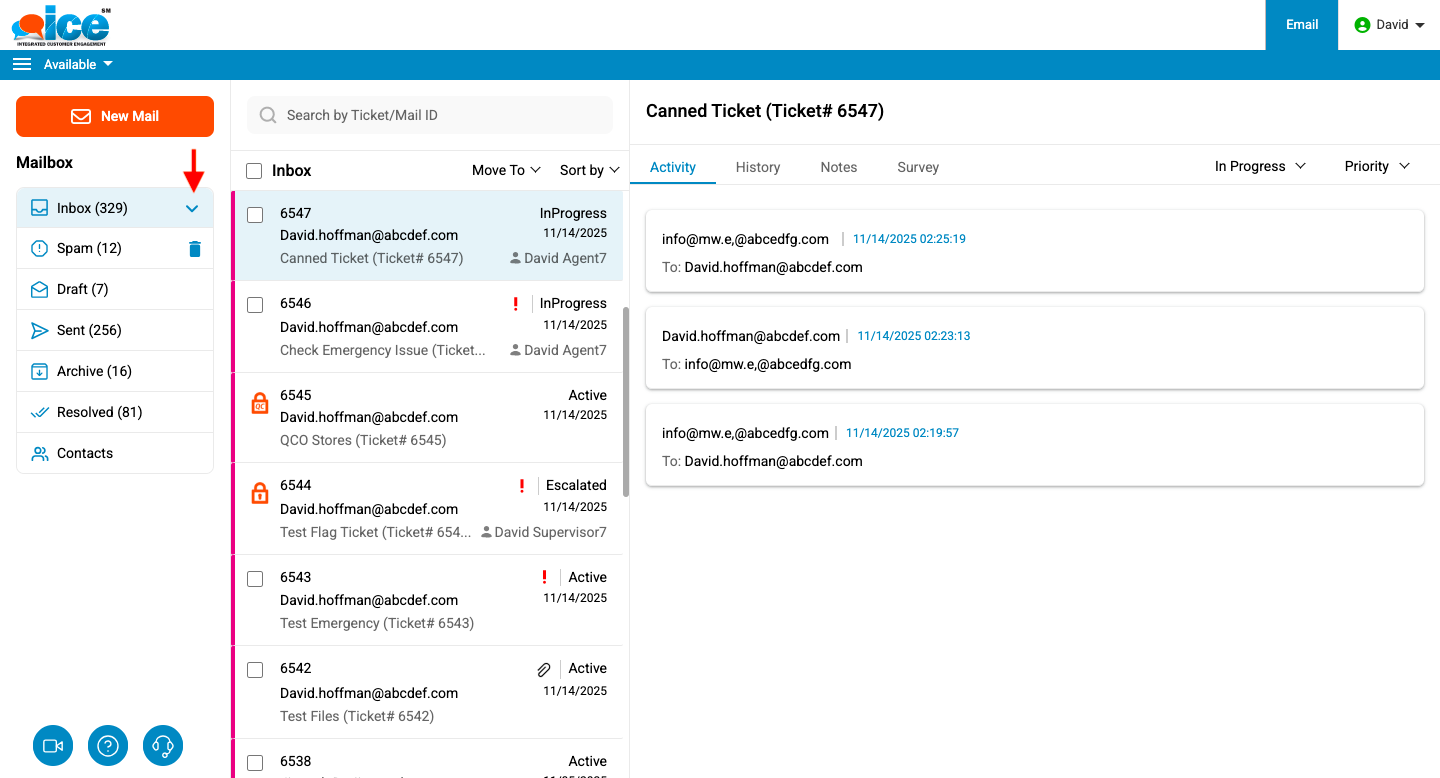
Click  to view skills. This will open the skills in the menu like the one as shown below-
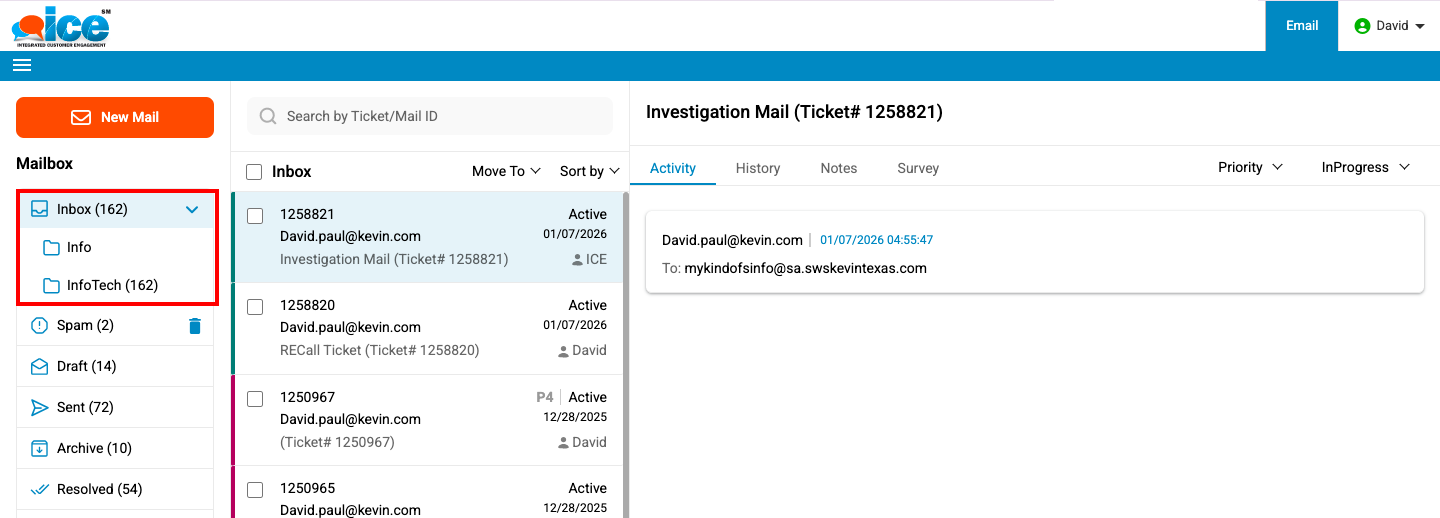
Click Inbox to view list of all the tickets of the operator gets displayed in the Email Grid as shown in the screen below.
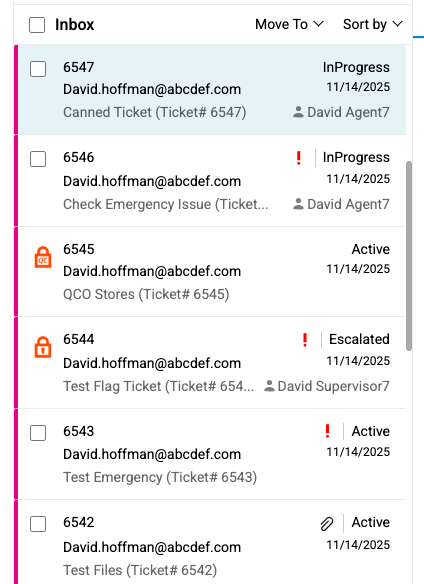
Inbox Folder Screen
Search:
Enter any one of the ticket details to search. You can use either the Mail ID or the Ticket ID of the specific ticket.
An operator can select any ticket from the Email Grid to perform the following actions. After selecting a ticket, click the Move To button to open the tab and choose to Archive, mark as Spam, Transfer, or Assign the ticket.
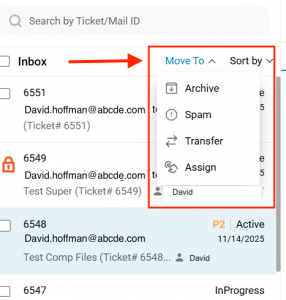
Archive: Click  to move a ticket to the Archive folder.
Spam: Click  to move a ticket to the Spam folder.
Transfer: Click  to escalate a ticket to another operator, supervisor or skill.
Assign: Click  to assign a particular ticket to yourself.
Notes:
- An operator needs to select a particular ticket before performing the operations like Archive, Spam, Transfer and Assign.
- An operator can assign tickets to himself using button, only if “Selective Email Distribution” feature is enabled from the Admin Console.
- Selective Email Distribution feature is a part of the premium package which needs to be subscribed separately.
- By default, the Basic package of ICE contains download button using which an operator can only download email tickets for further processing. At this time, the button is not visible on the screen.
An operator can further view email tickets on the basis of skills under Inbox Folder.