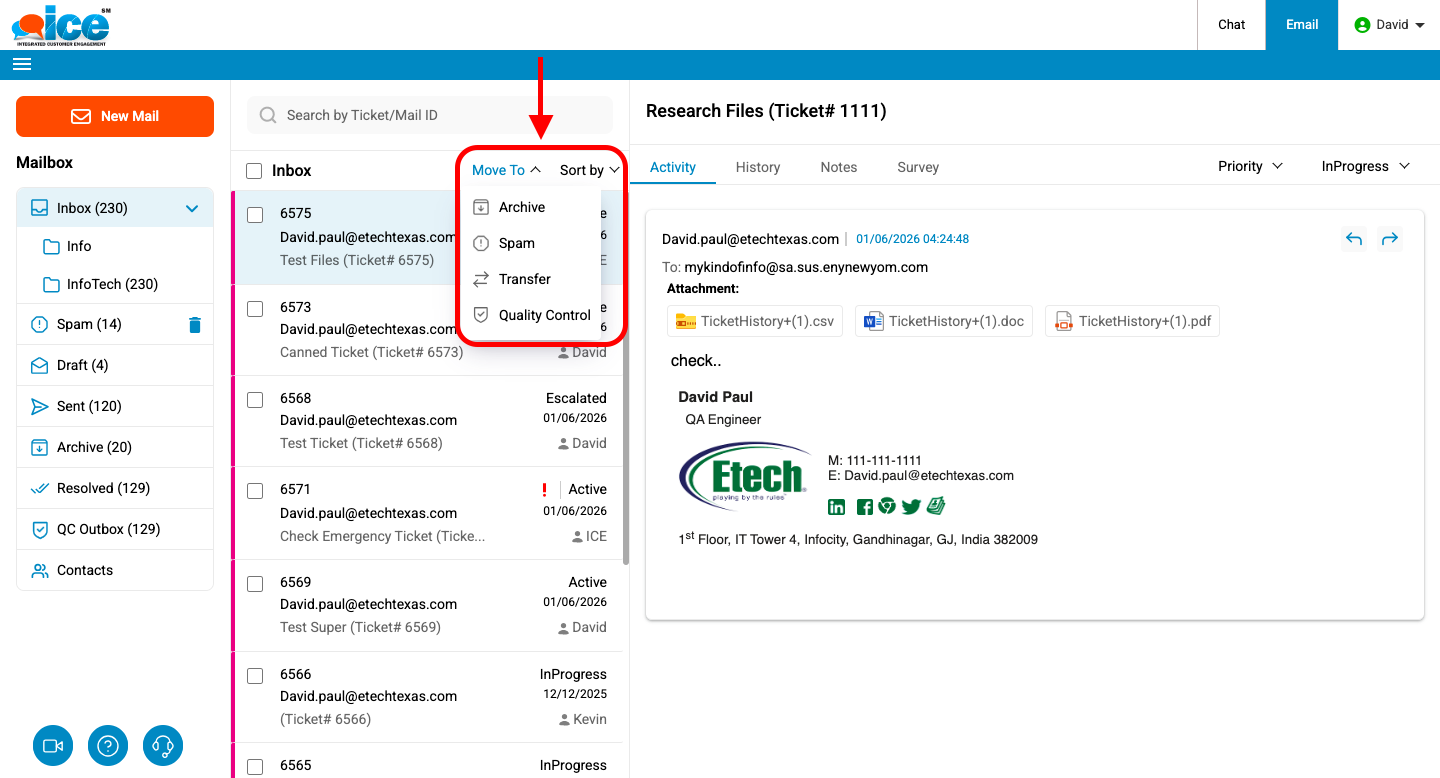
- Select the ticket by clicking its checkbox, then click the Move To button followed by the Transfer
 icon to complete the transfer, as shown.
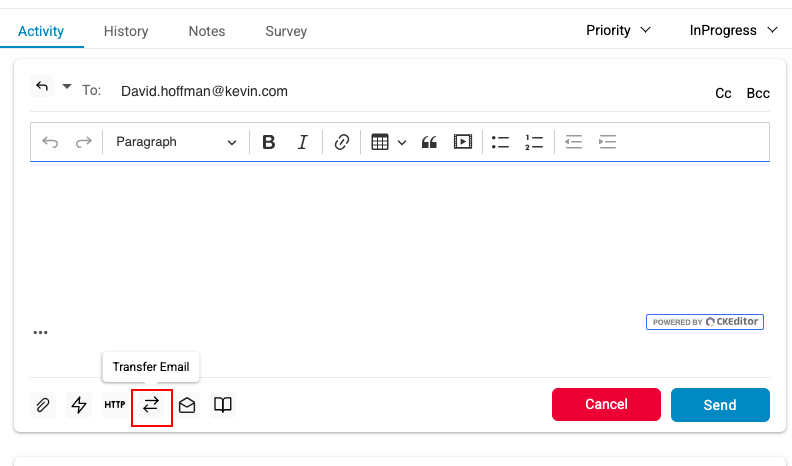
Or simply click the Transfer icon, as shown below.
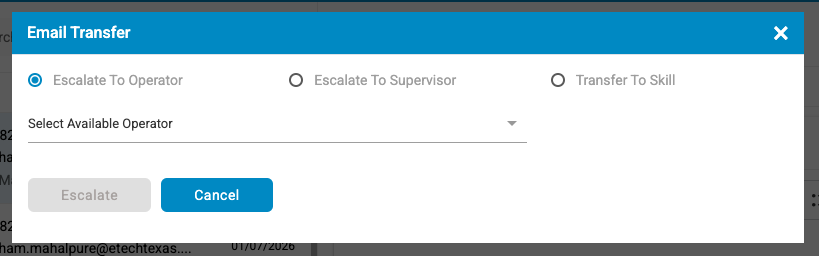
The following Transfer Tickets Window appears.
| Screen Elements | Description |
|
Escalate to Operator |
|
|
Skill |
Displays the current skill by default from the skill dropdown list when assign to operator option is selected. |
|
Available Operators |
Select the operator from the dropdown list to whom the ticket is to be transferred. The list displays the operators that are available and ready to take up tickets. |
|
Escalate to Supervisor |
|
|
Skill |
Displays the current skill by default from the skill dropdown list when assign to operator option is selected. |
|
Targeted Skill |
Select the Supervisor from the dropdown list to whom the ticket is to be transferred. The list displays the Supervisors that are available and ready to take up tickets. |
|
Transfer to Skill |
|
|
Skill |
Displays the skill. This field is disabled for the supervisor. |
|
Targeted Skill |
Select the skill to which the ticket is to be transferred from the dropdown list. |
2. Provide the required details and click on any of the buttons from below as per needed.
- Click
 button to transfer the ticket.
 - Click
 to cancel the process and return back to the editor window.
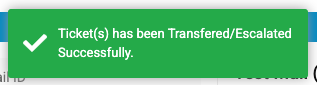
3. When an email ticket is transferred or escalated to a skill, operator, or supervisor, a confirmation message is displayed, as shown in the screen below.