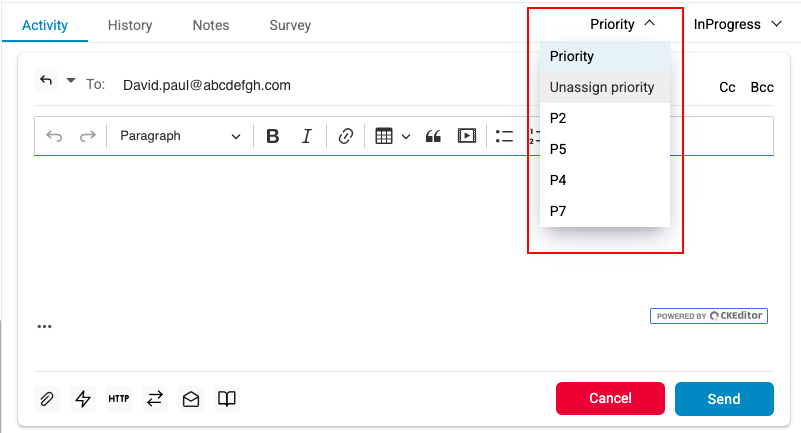
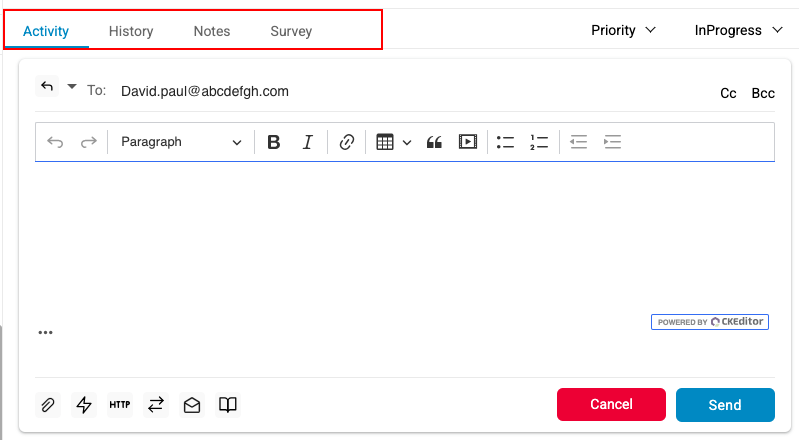
The Editor Window allows an operator to reply to or forward a ticket and send responses to the customer who raised it. It also provides options such as Canned Responses, Attach File, Escalate, and Save as Draft.
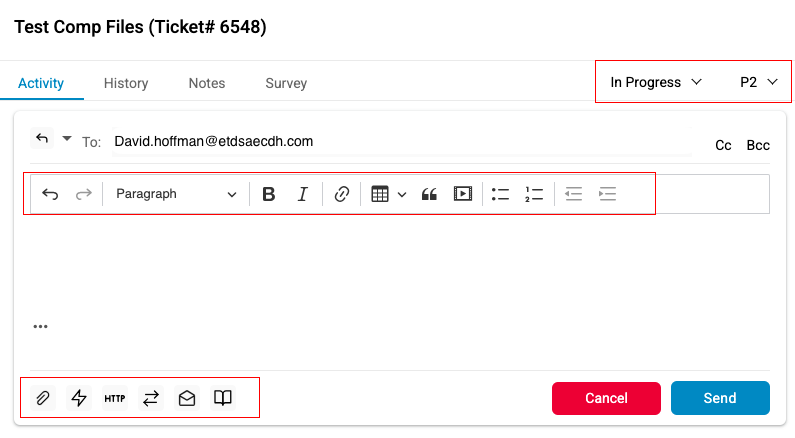
Editor Window
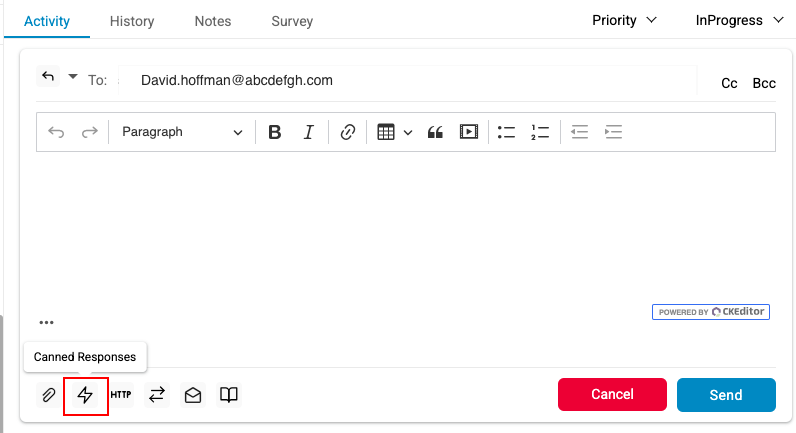
- Click Canned Responses
 icon to add canned responses in the body of ticket. (See Email Canned Responses)
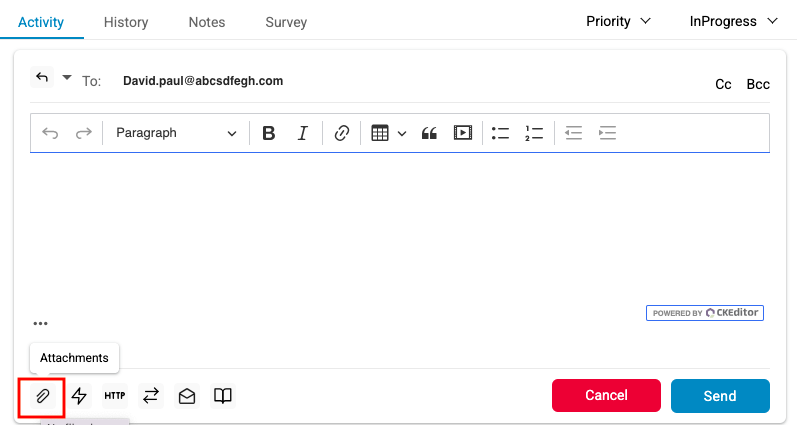
- Click Attachment
 icon to attach files to the ticket. A dialog box appears from where one can select a file and attach it to the ticket. (See Email Attachment)
- Click Escalate
 icon to transfer an email ticket to the operator or skill. (See Email Escalate/Transfer)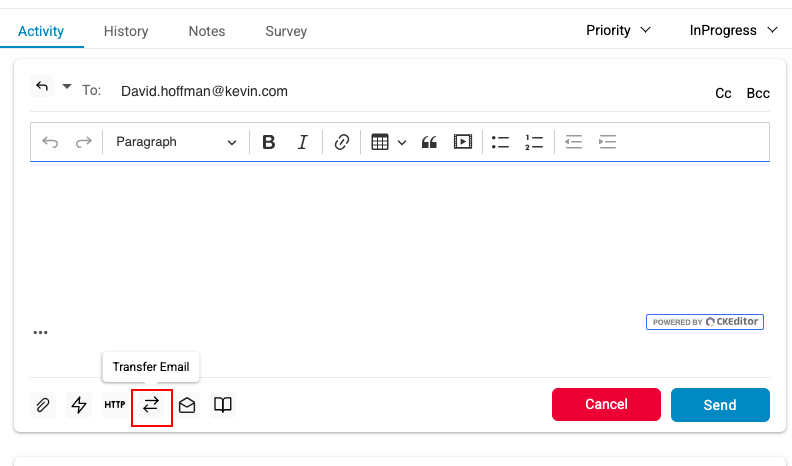
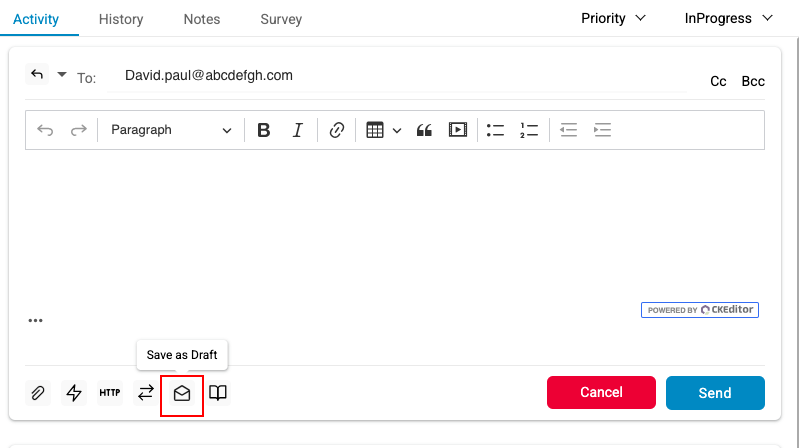
- Click Save as Draft
 icon, if you need to save a ticket as a draft for later use. The saved draft can be later viewed from the Draft folder of the Folder List. (See Save as Draft)
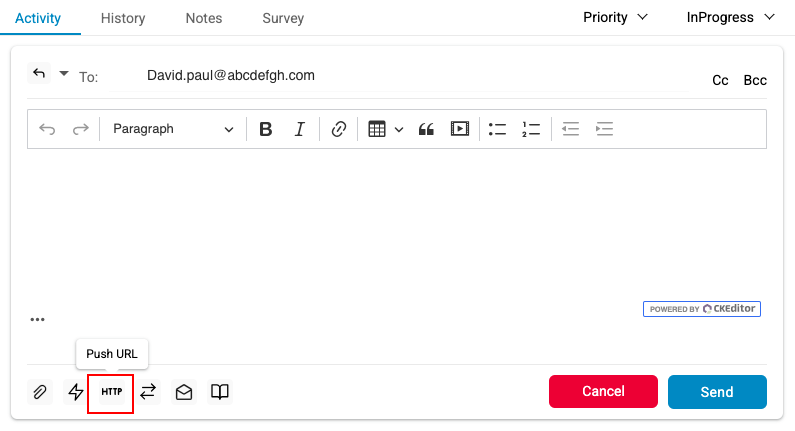
- Click Push URL
 icon, to push a URL while replying or composing an email. (See Email Push URL)
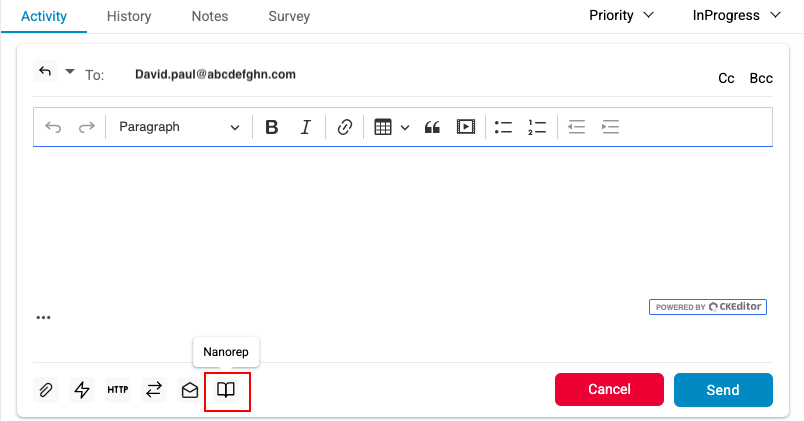
- Click Nanorep
 icon for nanorep option. (See Email Nanorep)
- Information window consists of the tab such as Activity, Details, History, Notes and Survey.
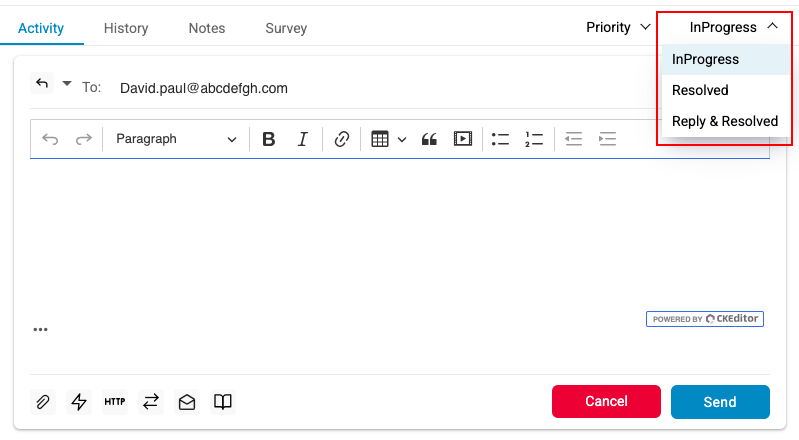
- The Ticket Status drop down box displays three options.
- In Progress- This will be the by default status in the drop down box.
- Resolved- An operator could resolve the ticket and the set the status to “Resolved”.
- Reply and Resolved- An operator needs to select the status as Reply and Resolved thereby entering texts in the text field and click on Send button
- The priority of the ticket would be displayed in the Ticket Priority drop down box. This option could be configured by Admin.